Postman collection#
On this page
To make it easier for merchants to integrate with our API, we have created a Postman collection that you can use to generate a BankId OIDC Token and create, and display test QR codes.
To use the Postman Collection, you will need to have obtained the client_id and client_secret from us. (Read more)
Setting up the Postman Collection#
-
Import the Collection: Open Postman, select 'Import,' and import the collection you downloaded from the link above. Alternatively, you can drag and drop the collection.json file into the Postman window.
-
Fill in missing
client_id,client_secretand thescopeparameters in the body of the ID-card Test POST as shown bellow: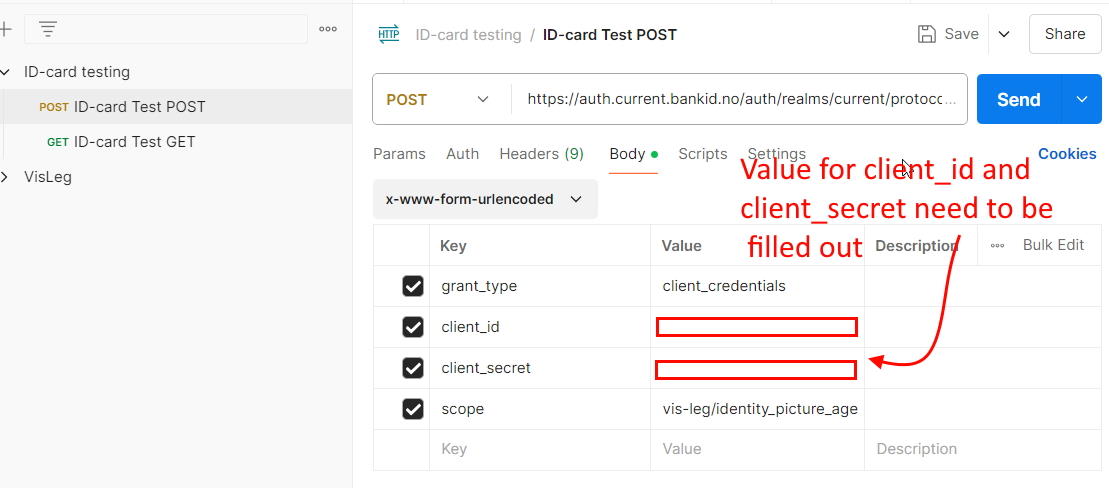
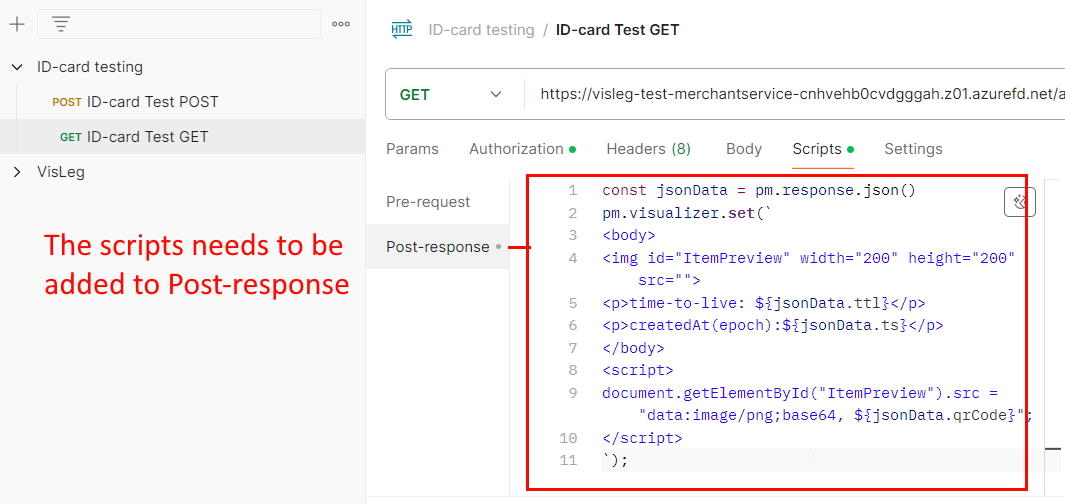
- Add QR code visualization to the Post-Response script of the ID-card Test GET request to display the QR code:
Visualization script:
   const jsonData = pm.response.json()
   pm.visualizer.set(`
      <body>
      <img id="ItemPreview" width="200" height="200" src="">
      <p>time-to-live: ${jsonData.ttl}</p>
      <p>createdAt(epoch): ${jsonData.ts}</p>
      </body>
      <script>
      document.getElementById("ItemPreview").src = "data:image/png;base64, ${jsonData.qrCode}";
      </script>
   `);
Using the Postman Collection#
- 1
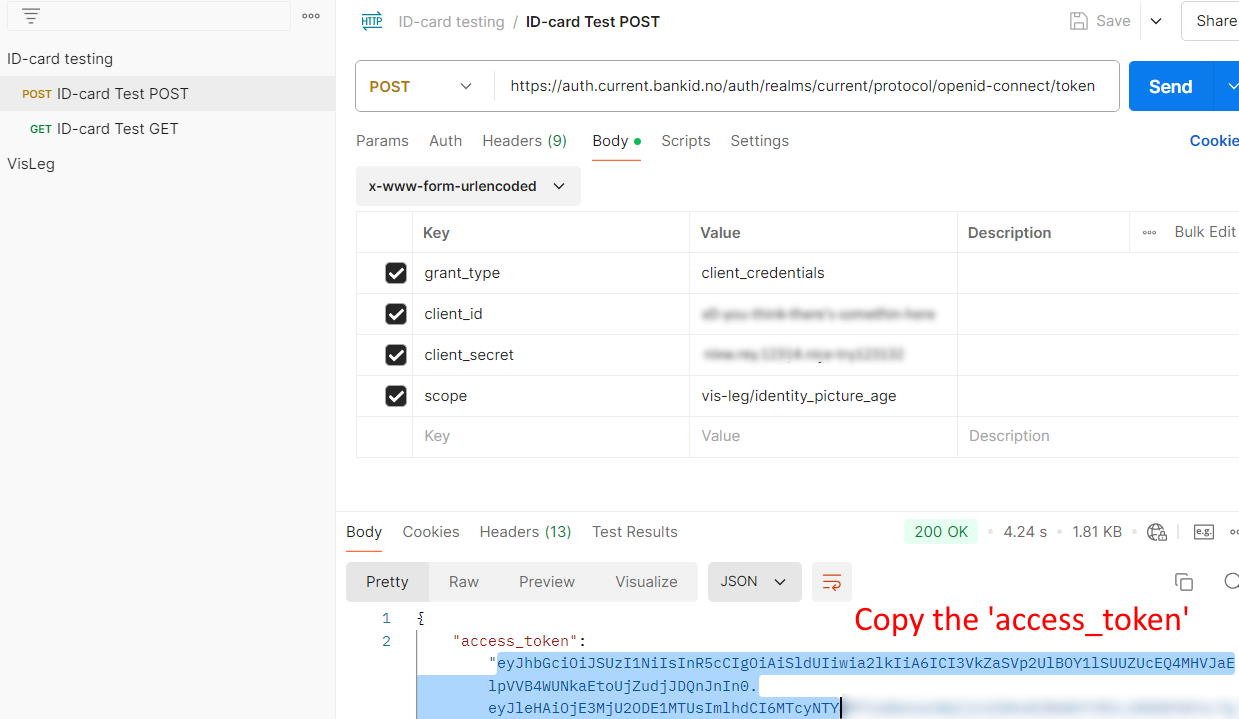
Make a call to the ID-card Test POST with
client_id,client_secret, andscopeto recieve anaccess_tokenin the response. - 2
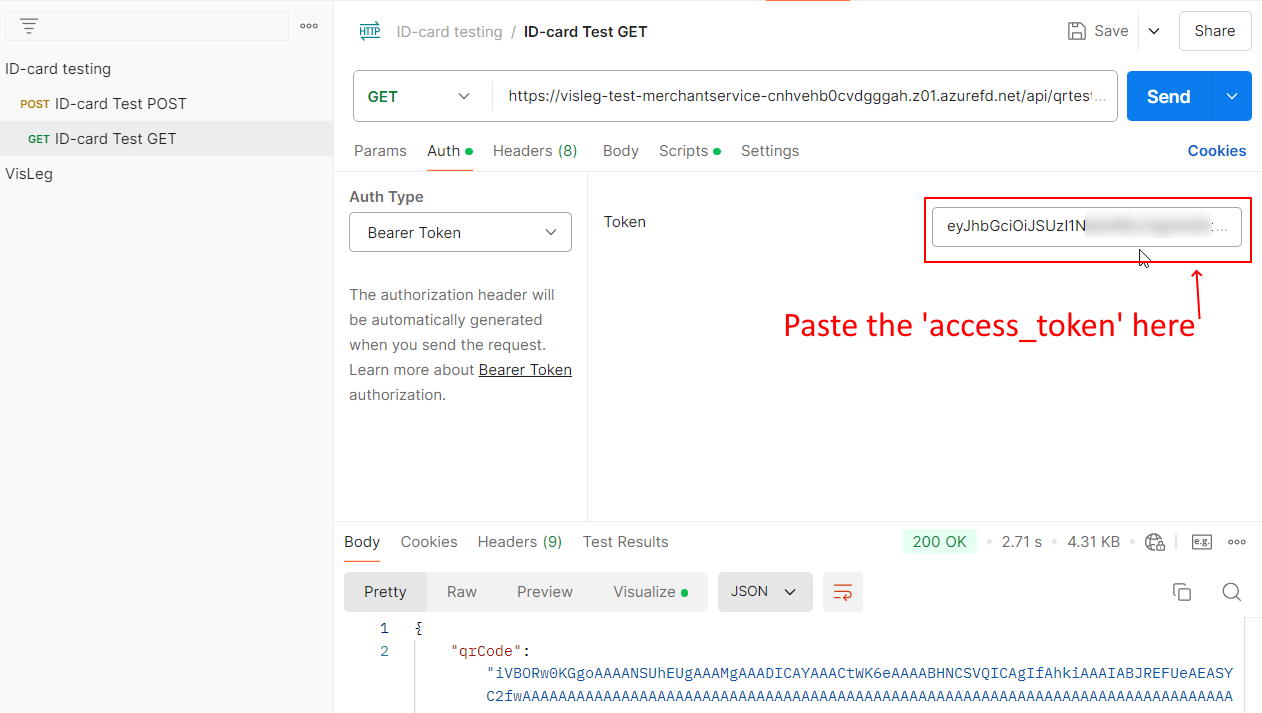
Use the ID-card Test GET request with the
access_tokenset in the Authorization field using Bearer Token Auth. - 3
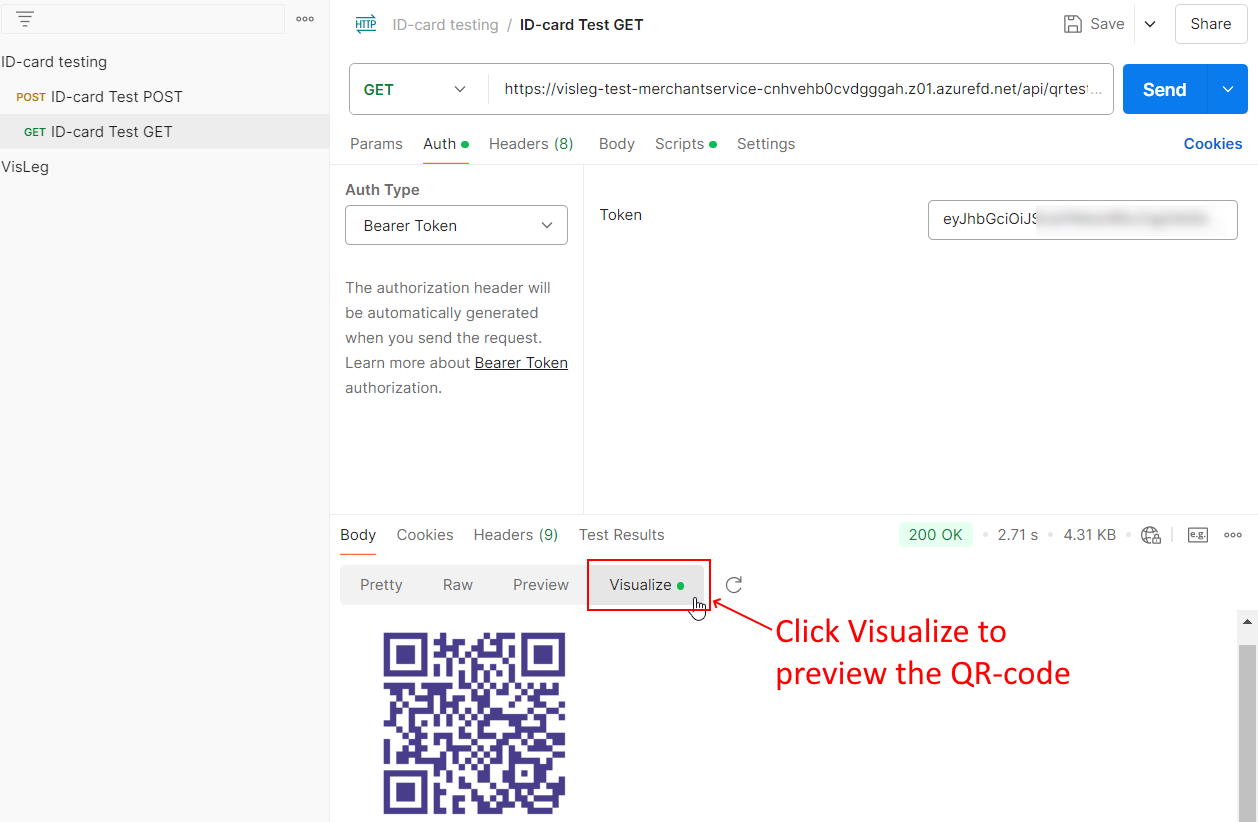
Check the Visualize tab in the Body section to see the QR code.
Screenshots of the steps above.
Step 1
Step 2
Step 3