# Postman collection
To make it easier for merchants to integrate with our API, we have created a Postman collection that you can use to generate a BankId OIDC Token and create, and display test QR codes.
To use the Postman Collection, you will need to have obtained the `client_id` and `client_secret` from us. [(Read more)](https://docs.stoe.no/id-card/getting-started/authentication.md)
[Download Postman Collection](https://docs.stoe.no/id-card/assets/idcard-in-bankid-app-postman-collection.json)
### Setting up the Postman Collection
- _Import the Collection:_
Open Postman, select 'Import,' and import the collection you downloaded from the link above. Alternatively, you can drag and drop the collection.json file into the Postman window.
- _Fill in missing `client_id`, `client_secret` and the`scope` parameters in the body of the ID-card Test POST as shown bellow:_
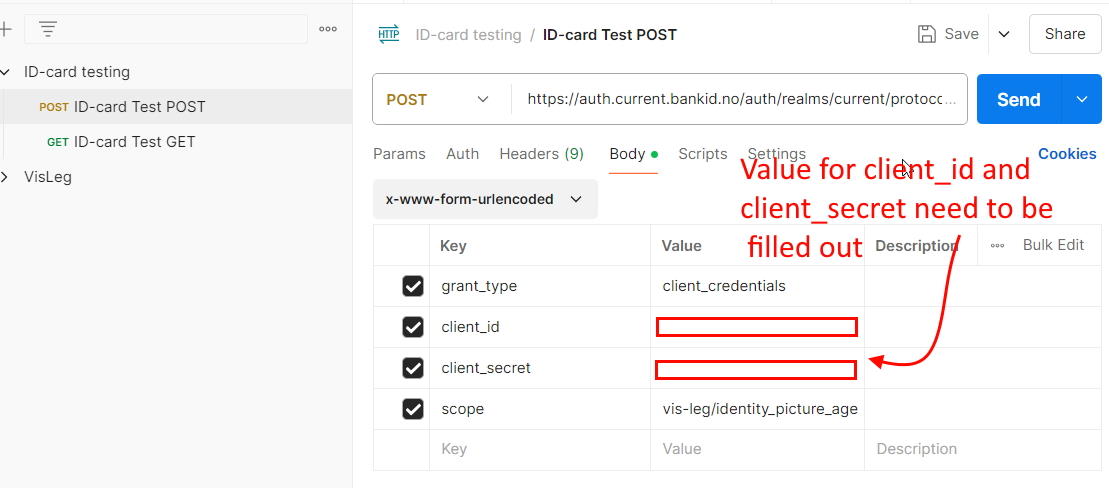
> **The value for `scope` must be one that you have permission to use. Any other value will result in an error.**
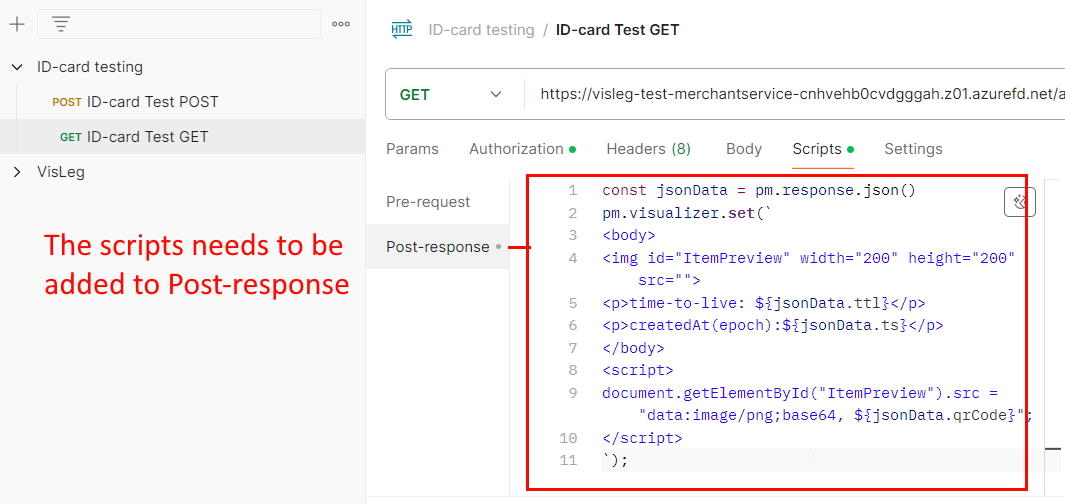
- _Add QR code visualization to the Post-Response script of the ID-card Test GET request to display the QR code:_
Visualization script:
```javascript
const jsonData = pm.response.json()
pm.visualizer.set(`
![]()
time-to-live: ${jsonData.ttl}
createdAt(epoch): ${jsonData.ts}
`);
```
### Using the Postman Collection
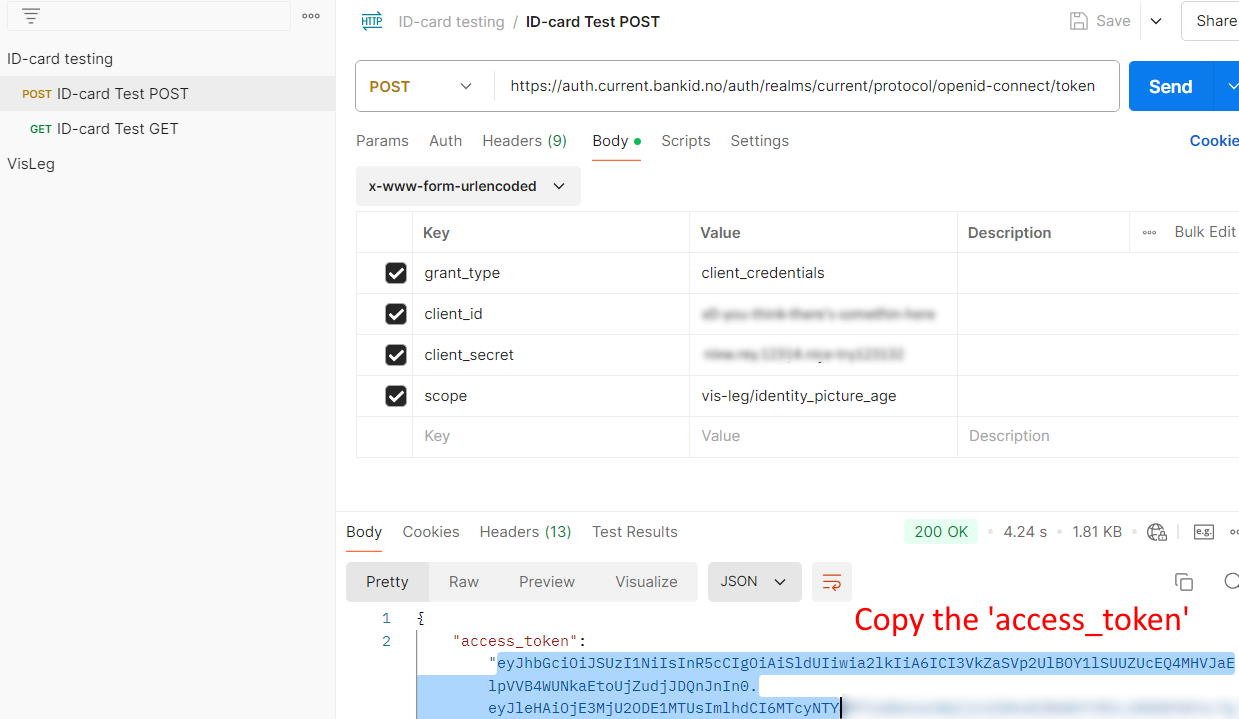
1. Make a call to the ID-card Test POST with `client_id`, `client_secret`, and `scope` to recieve an `access_token` in the response.
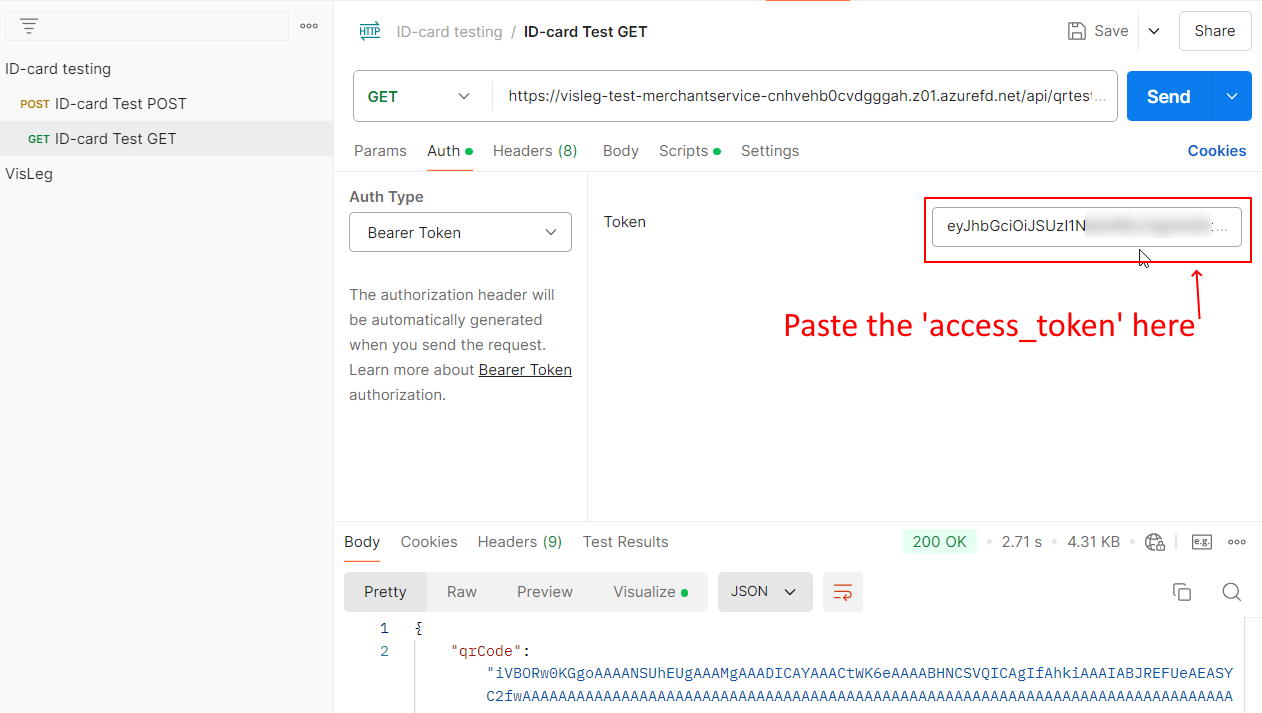
2. Use the ID-card Test GET request with the `access_token` set in the Authorization field using Bearer Token Auth.
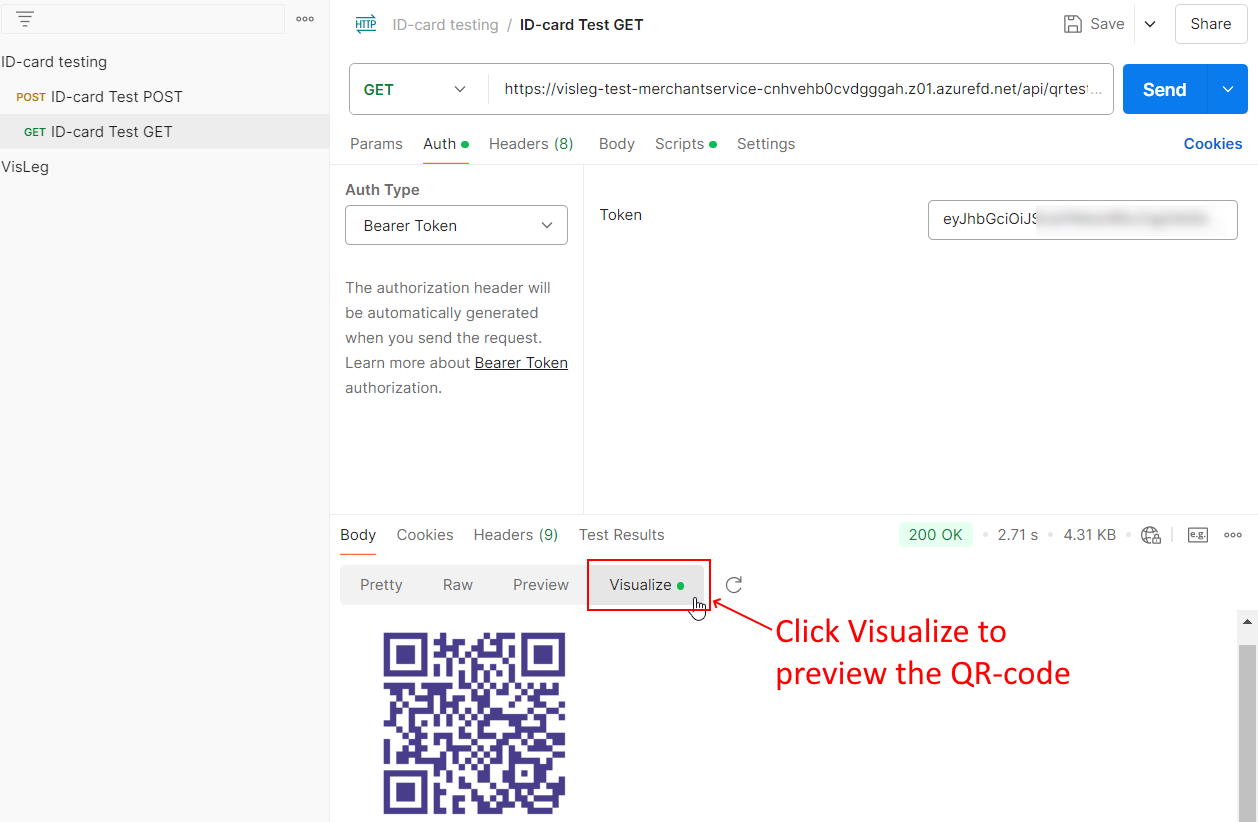
3. Check the Visualize tab in the Body section to see the QR code.
Screenshots of the steps above.
Step 1
Step 2
Step 3